


Ps Controller for PS4 PS5
4.576.00 Reviews
App Specs
- Version
- 31.0
- Updated On
- License
- Free
- Downloads
- 100,000+
- Developer
- DTFHM
- Categories
- Libraries & Demo
- Platform
- Android
Screenshots
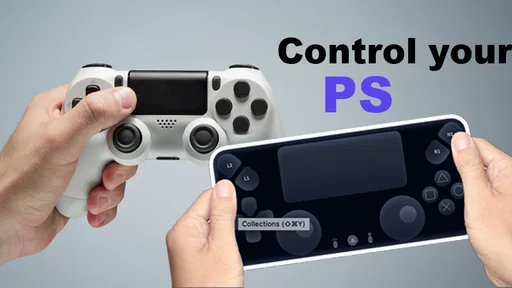
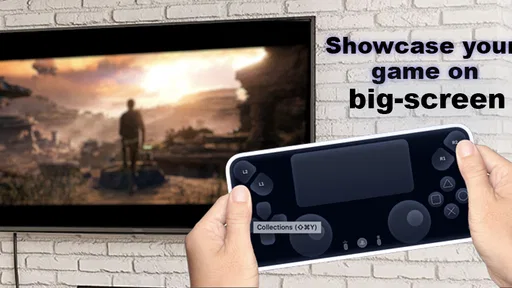
 Analysis by AppCompare
When I’m deciding whether to use a phone as a PlayStation controller, convenience matters more than novelty. I want a backup that is easy to reach when a second physical controller is unavailable, but I also need to know whether touch controls will suit the game and whether using my phone will be comfortable for more than a few minutes. Ps Controller for PS4 PS5 is aimed at that specific gap: it turns a phone into an alternative way to control a console, rather than trying to replace every reason people prefer a dedicated gamepad.
That distinction is useful before installing anything. A phone is already in your pocket, so it can be a practical stopgap for a quick session or a casual game with someone at home. It is not automatically a better controller simply because it is available. The screen offers no physical buttons to feel, and holding a phone for play is different from gripping a controller. I would judge it by whether it helps in the moments when convenience wins, not by expecting it to make a traditional gamepad obsolete.
Choosing a Phone-Based Controller
I use a phone-based controller as a choice for a particular situation, not as a blanket replacement for a gamepad. In this section, I weigh the practical questions that matter before trying Ps Controller for PS4 PS5: which games suit touch input, how much setup you are willing to do, and whether the phone will be free to use during play. That makes it easier to see where this option is genuinely useful.
What I would consider before connecting
The first question is what you plan to play. Games that tolerate a slower, more deliberate control style are a more sensible place to try a phone-based option than sessions where tiny timing differences decide the outcome. If you mostly play casually, having controls on a device you already own may be enough. If you rely on precise button timing or a familiar physical grip, a standard PlayStation controller remains the safer choice.
I would also think about the setting. A phone controller makes the most sense when the console and phone are nearby and you can follow the connection steps without rushing. It is less appealing if you want to sit down and start immediately, or if your phone is also needed for calls, messages, or other tasks during play. Treating the app as a convenient alternative instead of a guaranteed substitute sets fair expectations.
Where it can be useful
The strongest case is the ordinary spare-controller problem. Imagine a friend comes over, the console is ready, and you discover there is no second gamepad available. Rather than ending the session or buying hardware for a one-off visit, you can try using a phone. That is a specific kind of flexibility, and it is where this app’s purpose feels easiest to understand.
It can also help when you want to test a game or navigate a short session without reaching for a physical controller. I would start with a low-pressure situation, check that the connection and controls work as expected, and only then decide whether it suits a longer play session. That quick trial is more useful than assuming every game will feel equally natural.
Worth Reading Before You Choose

EA SPORTS FC Mobile 26 Is a Bigger Football Game, but It Takes Time

Flipboard Shows What News Apps Must Do Beyond the Feed

Switching to Android Auto Means Rethinking Your Driving Routine

Google Calendar Makes a Crowded Week Easier to Manage

Ludo King Makes the Most of the Minutes Between Plans

Baby Panda World Brings Quick Play to Modern Phones, but Its Game Library Feels Busy
How it compares with familiar options
Compared with a dedicated controller, the phone’s advantage is availability; the trade-off is physical feel. A gamepad has buttons and sticks you can locate by touch, while a phone presents controls on a flat screen. Compared with other phone-based controller approaches, this app is most relevant if your goal is specifically to control a PlayStation rather than use the phone as a general-purpose gaming device. I would choose the option that matches the console and the game, rather than expecting one solution to cover every setup.
There is also a practical difference between a controller app and simply using the console’s regular controls or another supported way of playing. A phone-based layout may be handy for a quick backup, but someone who plays often or values consistency is likely to prefer a physical controller. The deciding factor is not which approach sounds more modern; it is whether the controls feel dependable and comfortable for the way you play.
Small habits that make the trial more useful
Before a session, I would make sure the phone has enough charge and avoid starting with a game where a missed input would spoil the experience. Keep the phone positioned so your hands can reach the on-screen controls without covering the parts you need to see. If a layout can be adjusted, take a moment to place the important buttons where your thumbs naturally land, then test it in a safe in-game moment rather than during a difficult section.
Those steps are not a substitute for a physical controller, but they can make a phone-based setup less awkward. They also help identify the real limitation quickly: whether the controls suit your hands and the game. If you find yourself constantly looking down to locate buttons or shifting your grip, that is a good sign to switch back instead of forcing the setup.
For a Libraries & Demo app, the appeal is practical rather than expansive: it offers a way to explore phone-based control for PlayStation use. It is free, developed by DTFHM, and has an Everyone age rating. Its current version is 30.0, and it runs on Android 7.0 or later. The app has a 4.4 average from around 1.3 thousand ratings, alongside 64 written reviews, and has passed 100 thousand installs. Those figures suggest that people have tried it, but they cannot tell you whether its on-screen controls will suit your preferred games; a short personal test is still the most useful measure.
A likely question is whether this should be your main controller. I would not recommend treating it that way before trying it with the games you actually play. A phone can be a backup, but physical buttons and a familiar grip matter during long sessions and demanding play. Another sensible question is whether it is worth keeping installed if you already own a controller. That depends on how often you run into a second-player or spare-device situation: if it happens occasionally, the convenience may justify having the option ready; if it never happens, a dedicated controller may be simpler.
First Impressions
So, you’ve downloaded the app, and you’re eager to get started. The interface is sleek and user-friendly, which is always a good start. No one wants to spend ages figuring out how to pair their device, and thankfully, this app makes the process pretty straightforward. Just follow the on-screen instructions, and you’ll be connected in no time. I really appreciated how the app guides you step-by-step, ensuring there’s no room for confusion.
For a smoother first try, I would do the initial connection before friends arrive or before starting a game you care about. That gives you a chance to understand the prompts and see how the phone sits in your hands. If you are setting it up as an emergency spare, discovering any friction ahead of time is much better than learning the controls while everyone is waiting.
Features That Stand Out
What really caught my attention are the features packed into this little app. It’s not just about basic control; it offers a range of functionalities that mimic a real PlayStation controller. You get to use your phone’s accelerometer for motion control, which is perfect for those racing games where steering feels more natural with a tilt. Plus, the app supports vibration feedback. It’s a small detail, but it adds to the immersive experience.
Another feature worth mentioning is the customizable button layout. Whether you’re a fan of first-person shooters or prefer a good old RPG, having the ability to tweak the layout is a game-changer. It allows you to set up the controls in a way that feels most comfortable and intuitive for you. And let’s not forget the touchpad functionality—a handy addition that keeps the experience as close to using a real PS controller as possible.
Customization is most useful when it solves a specific discomfort, not when it becomes a project of its own. I would change only the buttons that feel awkward, then play a short section and see whether the adjustment helps. For motion controls, try a gentle movement first; tilting a phone can feel different from moving a physical controller, so a racing game is a better test than a high-pressure match. Vibration can add feedback, but it does not replace the tactile information of physical buttons.
Performance in Action
Now, onto the real question—how does it perform during gameplay? I tested the app with a variety of games on both the PS4 and PS5, and I was pleasantly surprised. The connection was stable, and I didn’t encounter any noticeable lag. The buttons were responsive, and the motion control was smooth. It’s not quite the same as holding a physical controller, but for an app-based solution, it’s pretty darn close.
That experience is encouraging, but I would still test the connection in the room and setup where you intend to play. A short check gives you a practical answer about responsiveness before you commit to a longer session. If a particular game feels less comfortable, that may be a mismatch between the game and touch controls rather than a reason to expect every title to behave the same way.
One thing I did notice, though, is that battery consumption can be a bit heavy. If you’re planning a long gaming session, make sure your phone is fully charged or have a charger nearby. It’s a small price to pay for the convenience of using your phone as a controller.
There is a trade-off in keeping the phone active as a controller: it is both the input device and a device you may need for everyday communication. I would avoid relying on it when I expect to use the phone for something else mid-session, and I would keep an eye on charge for longer play. If either interruption or battery use would be frustrating, a regular controller is the less distracting choice.
Who Is This App For?
If you’re someone who frequently finds themselves without a spare controller or if you’re just looking to try something new, this app is worth checking out. It’s also a great solution for those moments when you have friends over, and you need an extra controller on the fly. The app is about flexibility and ease of use, making it a great companion for both casual and hardcore gamers alike.
"It’s like having a backup controller in your pocket, ready to jump into action at a moment’s notice."
I would qualify that recommendation for people who play competitively or spend long stretches on games that demand accurate, repeatable inputs. They may find the lack of physical controls a bigger drawback than the convenience is worth. Someone who values a reliable tactile layout should stick with a dedicated gamepad, while a casual player, a curious tester, or a household that occasionally needs another way to control the console has a clearer reason to try this app.
Final Thoughts
All in all, the app is a nifty tool that packs a punch in terms of functionality and ease of use. It’s a fantastic option for those looking to extend their gaming possibilities without breaking the bank on additional hardware. While it may not replace the tactile feel of a physical controller entirely, it offers a solid alternative that’s both practical and innovative. So, if you’re in the market for a convenient controller solution, give it a go—you might just be surprised at how well it performs.
My recommendation is to approach it as a useful backup, then judge it with a short session in the games you care about. If the layout feels comfortable and the connection suits your setup, it can solve an occasional controller shortage without asking you to buy another device. If you need consistent physical feedback or a controller for demanding, extended play, keep using a dedicated gamepad instead. That is the clearest way to get value from this app without expecting a phone to feel exactly like a controller.
Ready to dive into your next gaming adventure with a new controller at your fingertips? Check out the app and embrace the future of mobile gaming control. Game on!
Pros
- Seamless connectivity with PS4 and PS5.
- Customizable button layout settings.
- Responsive touchpad functionality.
- Supports motion sensor features.
- Ergonomic design for extended play.
Cons
- Limited compatibility with non-PS devices.
- Battery life could be improved.
- Occasional connectivity issues.
- No support for older PS models.
- Requires frequent firmware updates.
FAQs for Ps Controller for PS4 PS5
What is Ps Controller for PS4 PS5 and how does it work?
Ps Controller for PS4 PS5 is an app designed to transform your mobile device into a controller for your PlayStation consoles. By connecting your phone via Bluetooth or Wi-Fi, you can use it to navigate menus, play games, and control media playback. This is especially useful when your original controller is out of battery or if you need a backup.
Is Ps Controller for PS4 PS5 compatible with all games?
While Ps Controller for PS4 PS5 aims to be versatile, its compatibility can vary depending on the specific game and its controller requirements. Most standard games that use basic controls should work well, but games requiring complex input or specific controller features may not be fully supported.
How secure is the Ps Controller for PS4 PS5 app?
The app is designed with user security in mind, ensuring encrypted connections between your device and the console. However, users should download the app from reputable sources like the Google Play Store or Apple’s App Store to minimize security risks and ensure they have the latest updates.
Does Ps Controller for PS4 PS5 require an internet connection?
The app primarily uses Bluetooth to connect to your console, which does not require an internet connection. However, for initial setup or certain features, an internet connection might be necessary. It’s important to check the app’s requirements for specific functionalities.
Are there any additional costs associated with using Ps Controller for PS4 PS5?
Ps Controller for PS4 PS5 is typically free, but it may offer in-app purchases for enhanced features or ad-free experiences. Users should review the app's pricing details before downloading to avoid unexpected charges.


